Fix deprecation warnings
You can address deprecation warnings in the dbt platform by finding and fixing them using the autofix tool in the Studio IDE. You can run the autofix tool on the Compatible or Latest release track of dbt Core before you upgrade to Fusion!
To find and fix deprecations:
-
Navigate to the Studio IDE by clicking Studio in the left menu.
-
Make sure to save and commit your work before proceeding. The autofix tool may overwrite any unsaved changes.
-
Click the three-dot menu located at the bottom right corner of the Studio IDE.
-
Select Check & fix deprecations.
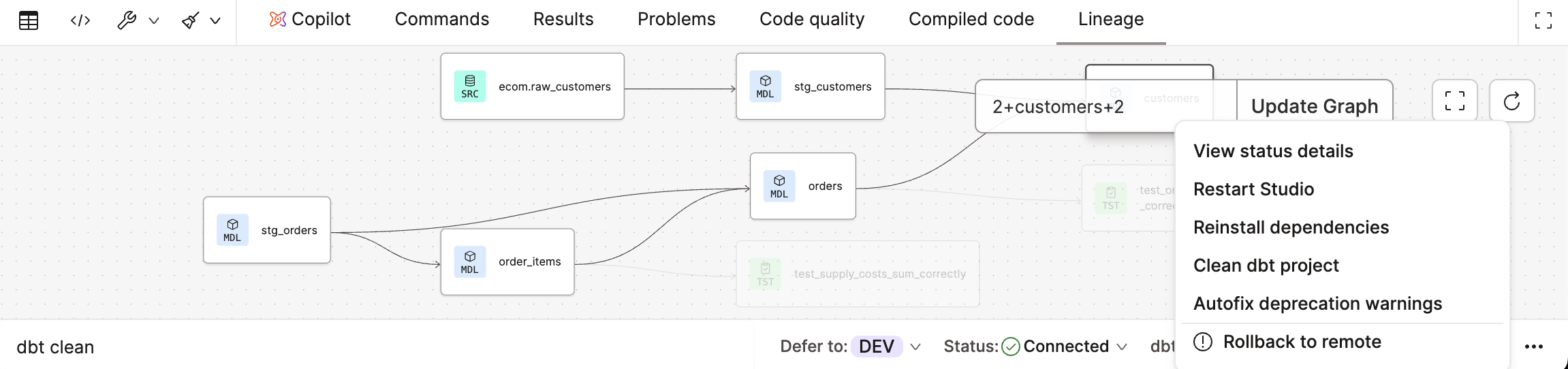 Access the Studio IDE options menu to autofix deprecation warnings
The tool performs a
dbt parse —show-all-deprecations —no-partial-parseto find the deprecations in your project. -
If you don't see the deprecations and the Autofix warnings button, click the command history in the bottom left:
 Access recent commands to see the autofix button
 -
When the command history opens, click the Autofix warnings button:
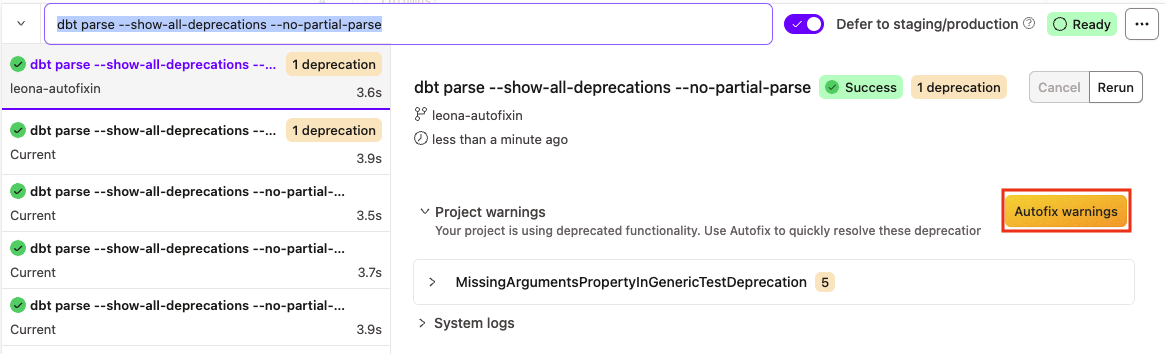 Learn what deprecations need to be auto fixed
 -
When the Proceed with autofix dialog opens, click Continue to begin resolving project deprecations and start a follow-up parse to show remaining deprecations.
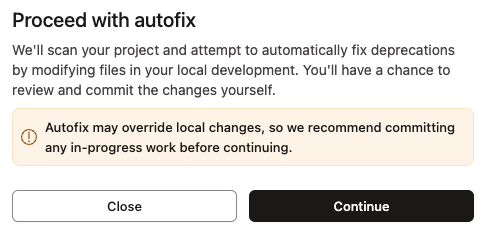 Proceed with autofix
 -
Once complete, a success message appears.
(Applies to dbt v2.0 and later)After a successful
dbt parsecommand, you'll see a Compile button to the right of the Successfully resolved result. Use Compile to compile your project from the results panel.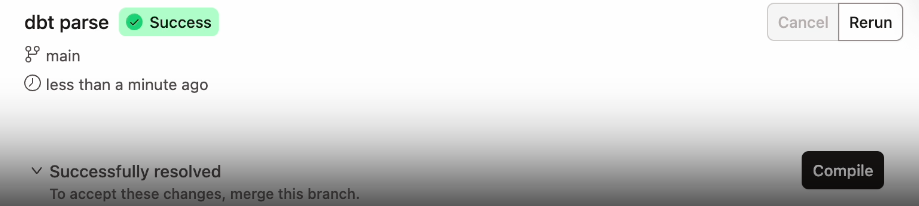 Autofix success with Compile in the Fusion flow
If successful, you'll see a Successfully compiled result. If you see any errors, review them and make any necessary changes.
-
Click Commit and sync in the top left of Studio IDE to commit these changes to the project repository.
-
You are now ready to enable Fusion if you meet the requirements!
Related docs
Was this page helpful?
This site is protected by reCAPTCHA and the Google Privacy Policy and Terms of Service apply.